
One chat. A team of specialist agents.
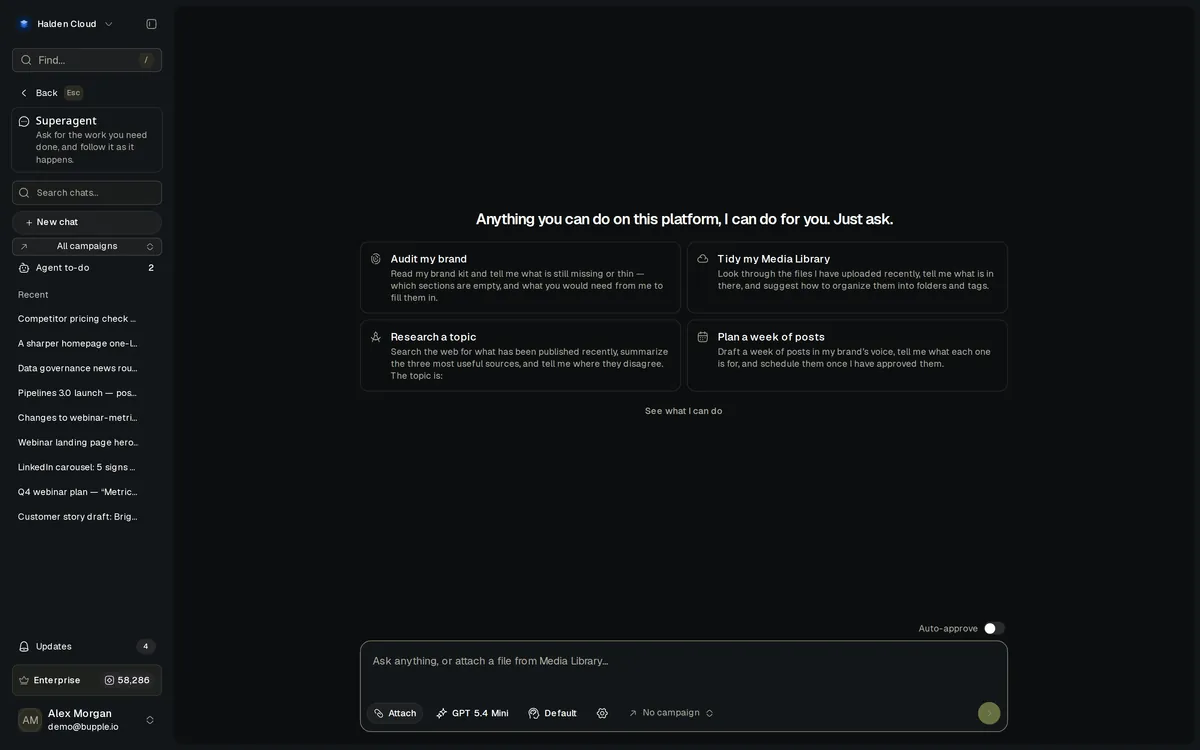
The Superagent is Bupple’s AI chat: ask in plain words and it hands each part of the request to one of ten specialist agents — Brand, Media Library, Web Search, Posts, Video Editor and more — then brings the results back into the chat, written from your Brand Kit.
10
Specialist agents
5
Kinds of media it can make
Asks first
Before it spends credits
After you leave
It finishes and tells you
How it's built
One supervisor. Specialists behind it.
The Superagent is the chat you talk to. Behind it, each specialist agent owns one kind of work, and the Superagent decides who does what.
You ask
Type what you need in plain words, in the brand you are working in. Attach files from your Media Library and pick the model.
- Plain words, any request
- Files from your Media Library
- The model you choose
The Superagent
Reads your Brand Kit, decides which specialist should do each part, hands it over, and asks you before a step spends credits or changes your brand.
- Reads your Brand Kit
- Hands work to specialists
- Asks before it spends
Specialists
Each specialist does its own kind of work — the brand, files, the web, posts, video, media — and the results come back into the same chat.
- One kind of work each
- Results back in the chat
- Files saved to Media Library
The team
The specialists it hands work to.
Each one is switched on with the app that owns it, so the Superagent only offers what your workspace has.
Brand
Reads your Brand Kit and suggests changes to it, asked first
Media Library
Finds, reads and organizes the brand's files and folders
Web Search
Searches the web and sums up each result
Link Reader
Reads a public page — its text, pictures and links
Social Reader
Reads a social post's details and what is said in it
Posts
Drafts and schedules posts, and reads how they did
Inbox Agent
Reads DMs and comments; a reply is sent only after you approve it
Video Editor
Makes a finished video from your request and files, and changes it when asked
Image, video and sound maker
Makes images, video clips, speech, music and sound effects
Workspace
Answers questions about your workspace, brands and team
The workflow
From a question to a finished file.
Ask
Type what you need in plain words and attach files from your Media Library if they help. No templates.
"Make a 30-second vertical video from these product photos, in our brand voice."
The Superagent hands it over
It reads your Brand Kit and passes each part to the right specialist. The chat shows who is working on what.
Delegated to Video Editor
It asks before it spends
A step that costs credits or changes your Brand Kit asks you first, unless you turn on Auto-approve. A reply to a DM or comment is asked every time.
Approve · Deny
Results come back into the chat
Pictures, videos and designs arrive in the conversation and are saved in your Media Library. If you leave, the answer still finishes and you get an Update.
"Make the opening shorter and use our second color for the captions."
Schedule it, or make it repeat
Ask it to draft or schedule a post, or plan an automation with steps and a schedule. Automations make drafts; they never publish on their own.
"Every Monday, draft three posts from last week's new files."
What it does
Full capabilities
Pick the model
Choose the AI model from a picker that shows prices. Your workspace decides which models are offered, and your last pick is remembered.
Works with your files
Attach files from your Media Library. The Superagent sees pictures, reads documents and knows each video’s length and size.
Knows your brand
Every answer reads the Brand Kit of the brand you are in. It learns from your chats, can study your past posts, and leaves suggestions for the Brand Kit.
Asks before it spends
A step that costs credits or changes your Brand Kit asks you first, unless you turn on Auto-approve.
Reads the web and social posts
Web Search, Link Reader and Social Reader bring pages and posts into the conversation.
Finishes after you leave
Close the tab and the answer still finishes. You get an Update when it is ready.
Plans automations
Plan an automation in the chat: steps, a schedule or a trigger, and a credit limit. Automations make drafts and never publish.
Chats with your team around
A chat belongs to whoever started it. Teammates can comment on it with @mentions, and a chat can belong to a campaign.
Built for every team
One chat. Different teams.
Marketing teams, agencies, social and content teams use the same Superagent, each in their own brands.
Brief once, get the pieces.
Ask for a campaign's pictures, a video and a caption per network in one chat. Each specialist does its part, and the files land in your Media Library.
How it runs
Describe what you need
The Superagent splits the work
Specialists make pictures, video and copy
You approve the paid steps
Posts drafted on the calendar
One workspace, many brands.
Each brand has its own Brand Kit, files and chats, so the Superagent writes for the brand you are working in.
How it runs
Switch to the client's brand
Ask for the work
Answers use that Brand Kit
Files saved in that brand's Media Library
Teammates comment on the chat
Know what's working.
Ask how your posts did. The Posts agent reads your kept numbers and your best posts, and suggests what to make next.
How it runs
Ask "how did my posts do?"
Posts agent reads the numbers
Best posts named
Ask for another like the best one
Draft lands on the calendar
Turn footage into finished video.
Attach footage or product photos and ask for a video. The Video Editor makes it and the finished file comes back into the chat.
How it runs
Attach files from Media Library
Ask for the video
See the price and approve
Video Editor makes it
Finished video posted in the chat
The shift
This is what changes.
Before
With the Superagent
Write a brief in a doc and wait for someone to pick it up
Type the request in the chat. The right specialist starts on it.
Dig through folders for the right file
Attach files from your Media Library, or ask it to find them.
Re-explain your brand in every tool
Every answer reads your Brand Kit.
Resize and caption videos by hand
Ask the Video Editor for 9:16, 16:9 or 1:1, with captions.
Wonder what an AI run will cost
Paid steps ask first. Auto-approve is your choice.
Less switching
Fewer tabs. One conversation.
Work you used to do across separate tools happens in the chat, with your Brand Kit behind it.
Separate image and video tools
Image, video and sound from the chat
A tab full of search results
Web Search and Link Reader
Copying captions per network
A caption per network on each post
Brand guidelines in a PDF
A Brand Kit every answer reads
Checking every dashboard by hand
Ask "how did my posts do?"
Remembering to check back
An Update when the answer is ready
Connections
How the Superagent fits the platform
The Superagent reaches the rest of Bupple through its specialists — the same files, models and calendar you use yourself.
Media Library
Attach files to a chat, or ask the Media Library agent to find them
Imagine
Ask for images, video, speech, music or sound effects in the chat
Video Editor
Ask for a video; the finished file comes back into the chat
Posts
The Posts agent drafts and schedules posts when you ask
Brand Kit
Every answer reads it; what you tell the chat becomes a suggestion
Design Editor
Ask for a post and a story; the pictures come back into the chat
Campaigns
Ask it to start a campaign; its chats follow the campaign memory
Automations
Plan an automation in the chat; it runs by itself and only drafts
Analytics
Ask how your posts did; it answers from the kept numbers
Inbox
It reads the inbox and drafts replies you approve
Finishes after you leave
Close the tab and the answer still finishes. You get an Update when it is ready.
7 networks
Draft and schedule posts to Instagram, LinkedIn, TikTok, X, YouTube, Facebook and Telegram.
Your Brand Kit, every time
Every answer reads the Brand Kit of the brand you are working in.
FAQ
Common questions
Does it publish without me?
It schedules a post only when you ask it to. Automations planned in the chat make drafts and never publish, and an Inbox reply always waits for your approval.
Which AI models can I use?
The ones your workspace offers, from a picker that shows each model’s price. Your last pick is remembered, and you can choose how hard a model thinks where it supports that.
How does it learn my brand?
Every answer reads your Brand Kit. The Superagent learns from your chats and leaves suggestions; a change to the Brand Kit is asked first unless you turn on Auto-approve.
What does it cost?
Chats and the work they start are paid in credits from your workspace's balance. A step that spends credits asks first, and a campaign can have its own credit limit.
Can I connect my own tools?
Not from the app today. Bupple speaks MCP in both directions, but the screens for connecting your own MCP servers and making personal tokens are switched off for now. Signed webhooks send every Bupple event to your own systems.
The Platform
Everything works together.
Ask the Superagent for your next piece.
Start on the Free plan with 100 credits a month.
No credit card required · Cancel anytime