
Platform 101
Brand Intelligence
How to keep your brand in Bupple's Brand Intelligence — the Brand Kit's exact facts, Brand Memory's document, logos and files, version history, suggestions, and working with several brands.
Brand Intelligence is everything Bupple knows about one brand, on two pages. The Brand Kit holds the facts that must be exact and rarely change: your name, logo, colors, fonts, contact links, the words you never use and the legal lines you must add. Brand Memory is one document you write like a doc: who you are, who you are for, how you sound, your products, your offers and what works. The Superagent, automations, Bupple Line, the Video Editor and the Design Editor read both before they write a caption, make a picture or plan a post, so the better they are filled in, the more the work sounds like you. Open it from Brand Intelligence in the sidebar, or press B. Each brand in your workspace has its own Brand Intelligence.
Your brands
Brand Intelligence opens on the brand you are working in. To see all your brands, choose Manage brands from the brand menu at the top of the sidebar. The Brands page lists every brand in the workspace.
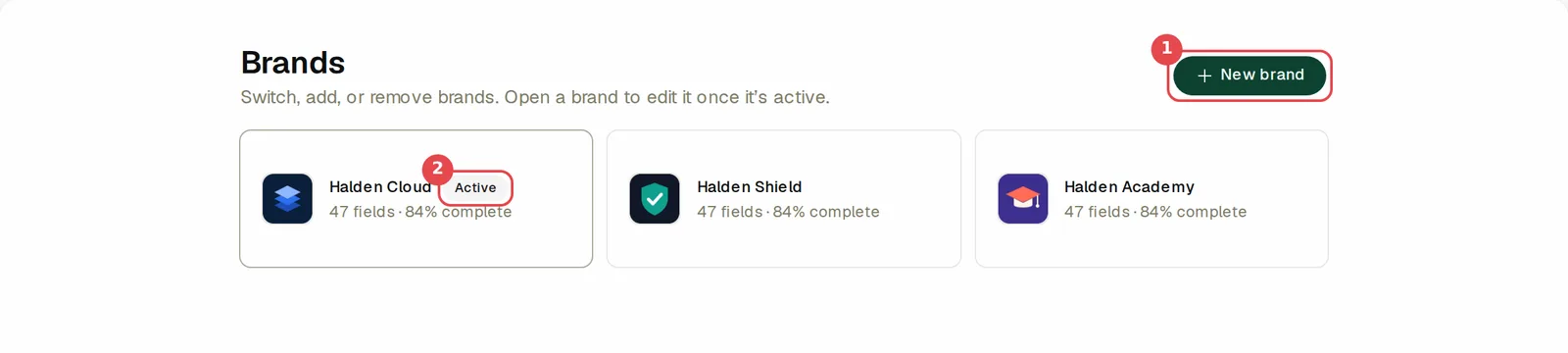
- New brand starts a new brand (see the next section). If your plan has no room for another brand, the button is off and a note under it says why.
- Active marks the brand you are working in. Each card also shows how many fields the brand has and how complete it is, for example 47 fields · 84% complete.
You can only edit a brand while it is active. Click another brand and Bupple asks Switch to "…"? first, because switching changes the whole dashboard to that brand. Press Switch brand to go.
If you are allowed to delete brands, a bin icon shows when you hover a card. Deleting is permanent. The window lists what goes with the brand, such as its social accounts, which are disconnected, and its scheduled posts, which are canceled. You cannot delete your only brand.
Create a brand
New brand opens Create a brand, with three ways to start.
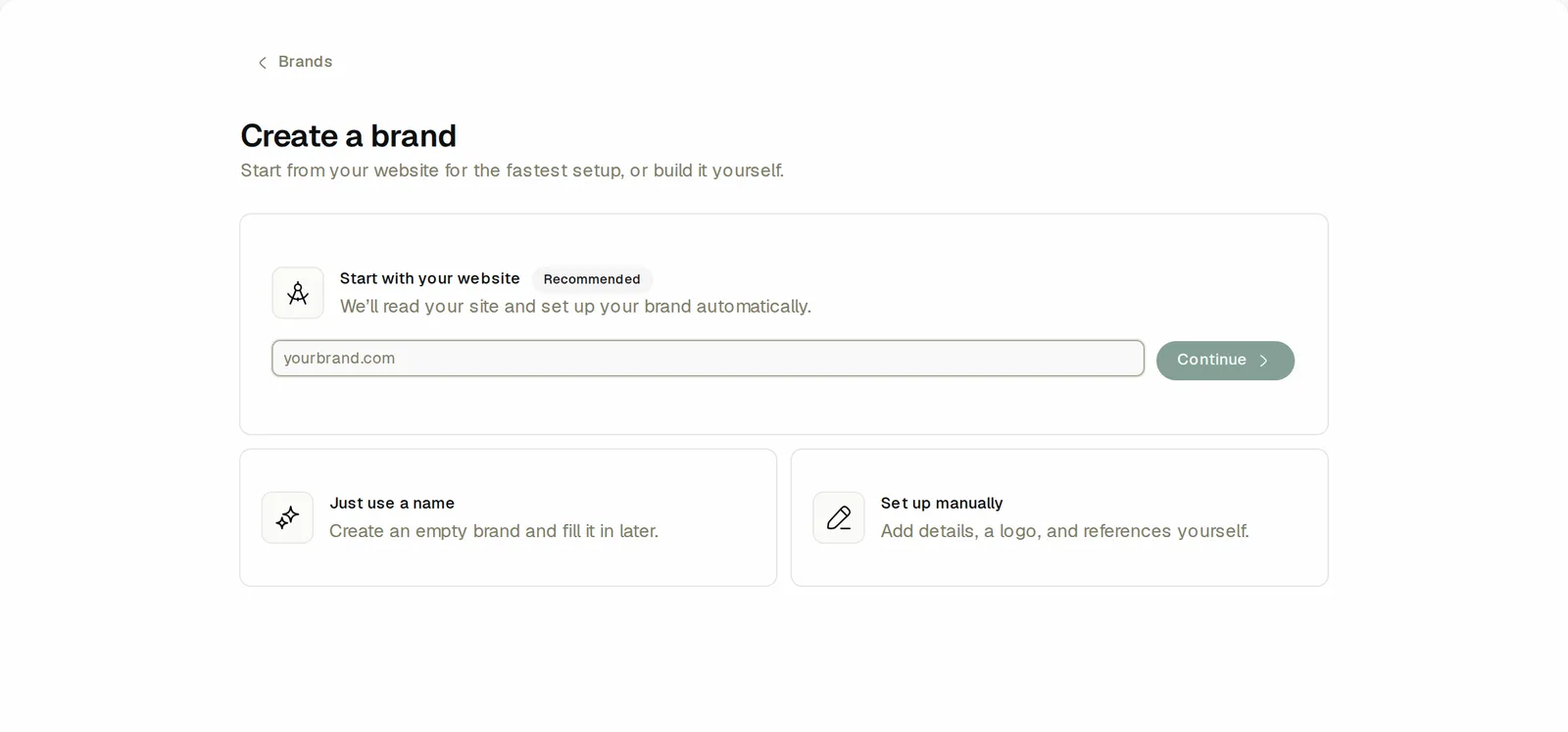
- Start with your website (marked Recommended). Type your site's address and press Continue. Bupple reads your site and drafts the brand for you. You watch the draft fill in, then it is saved along with the files it found. For a new workspace's first brand, the screen says Your first website import is free.
- Just use a name. Creates an empty brand. You fill it in later.
- Set up manually. Give a Brand name, a few lines of Details (voice, audience, products, mission and so on), and pick a Logo, Image references and Video references from your Media Library. Press Create brand, and Bupple structures your details into the brand's fields.
The Brand Kit page
Brand Intelligence opens on the Brand Kit. The sidebar lists the two pages, Brand Kit and Brand Memory, so you can move between them. At the top of the page is the brand's name, which you can edit right there, and how complete the brand is. On this page, on the right, lists the sections, so you can jump to one; the section you are reading is highlighted as you scroll.
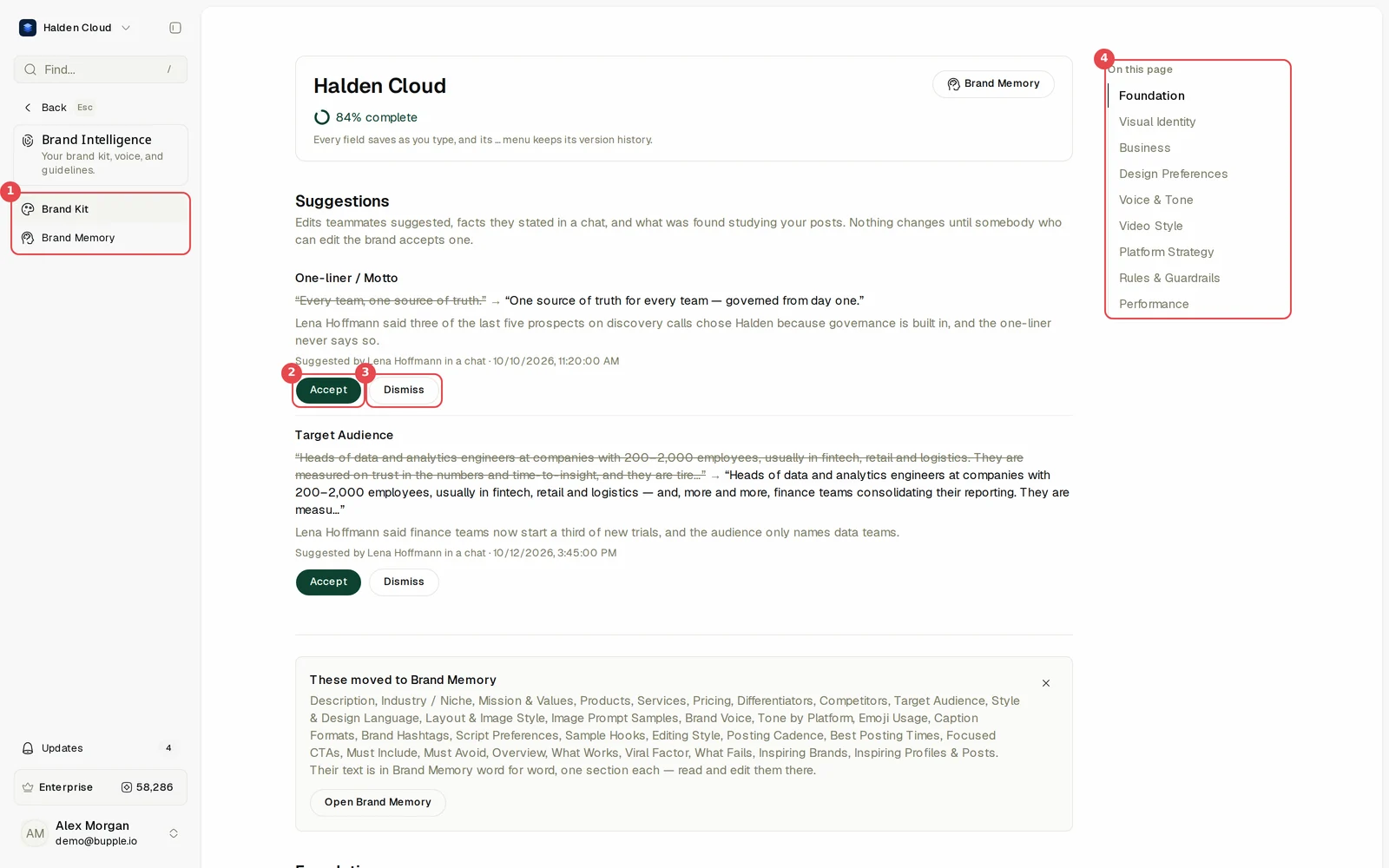
The Brand Kit has nine sections:
- Foundation: one-liner or motto, website, and contact and links.
- Visual Identity: brand colors, fonts and logo.
- Business: the markets you sell to, your time zone and your currency.
- Design Preferences: image references, elements and faces.
- Voice & Tone: primary and additional languages, how to say your name, names spelled exactly, words never to use, and your cloned voices.
- Video Style: video references, the narration voice, your sound and your sound logo.
- Platform Strategy: the social accounts connected to the brand.
- Rules & Guardrails: two switches for Bupple's own advice, required disclaimers, trademark marks and claims never to make.
- Performance: a slider for how much to try new ideas.
The longer write-ups, like your description, products, audience, brand voice, hooks and what works, live in Brand Memory. The Brand Kit says so in a note, These moved to Brand Memory, with Open Brand Memory.
Accept (2) and Dismiss (3) belong to a suggestion. See Suggestions below.
Only the brand name is required. Every other field is optional.
Edit a field
Click into a field and type. There is no save button. Bupple saves a moment after you stop typing, and the field shows Saved. Fields come in different shapes:
- Text boxes, such as One-liner / Motto or Website.
- Lists, such as Fonts or Words Never to Use. Press Add for a new line, and the bin to remove one.
- Tables, such as Required Disclaimers (the line and when it applies). Press Add row for a new row.
- Files, such as Logo or Image References, picked from your Media Library.
If you are not allowed to edit the brand, you can read the page, but not change it.
Colors, fonts and logos
Visual Identity holds the look of the brand.
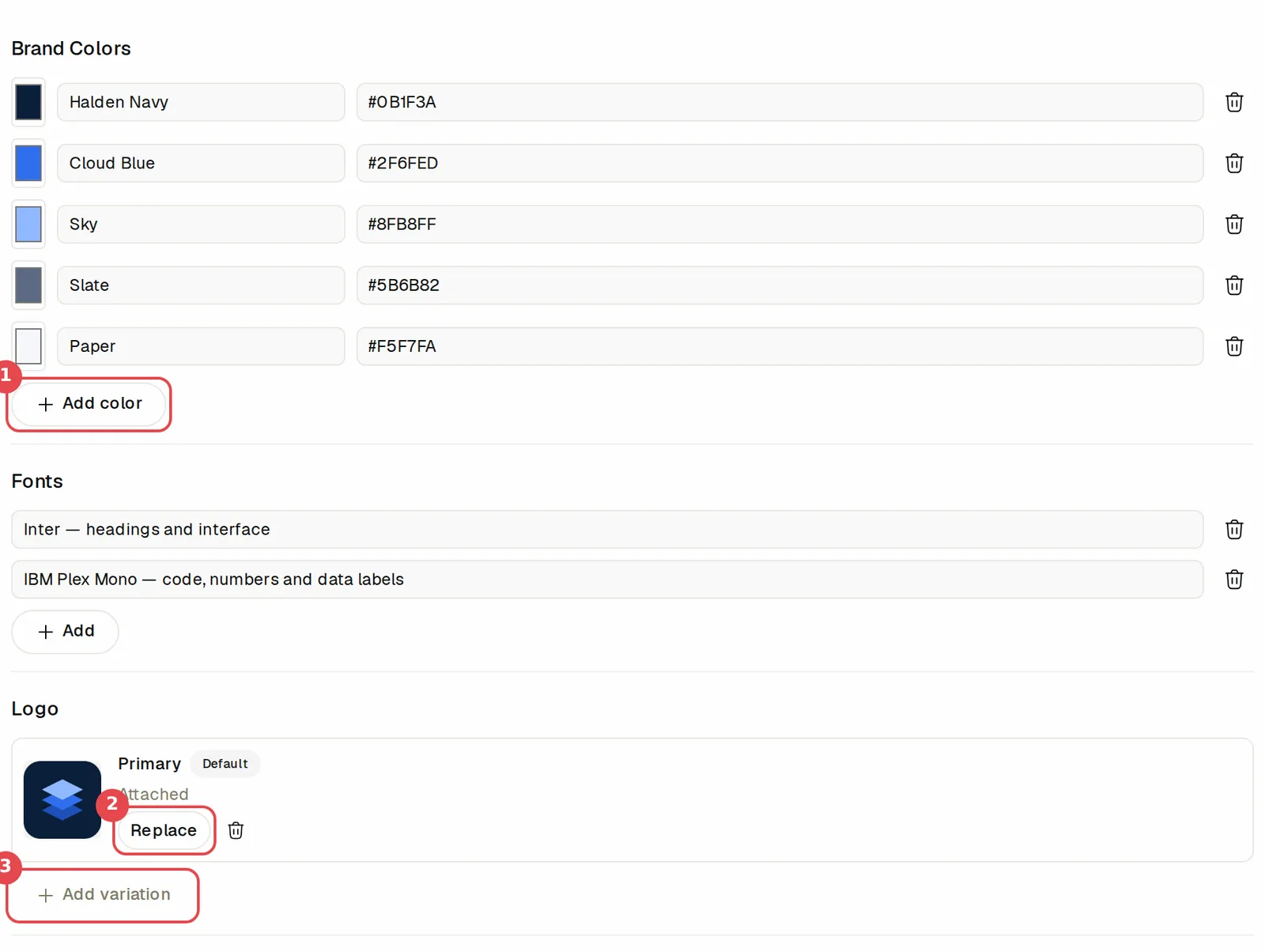
- Brand Colors. Each color has a swatch, a name and its hex code. Click the swatch to pick a color, or type the code. Press Add color for another one.
- Logo. The main logo is called Primary. Press Attach (or Replace when one is there) to pick an image from your Media Library. The bin removes it from the brand.
- Add variation adds another version of the logo with a name you choose, such as dark. When there is more than one, Set default picks the version Bupple shows as the brand's logo, and that one wears a Default badge.
Image References, Elements and Video References work the same way. Press Add from Media Library and pick one or more files. Image references show the style you like. Elements are things to use exactly as they are, such as a mascot or product shots. To take a file off the brand, hover it and press the small x, then Detach. The file stays in your Media Library. It is only removed from this field.
Faces are the people who appear for the brand. Press Add a person to give their name, role and photos. A person's photos go into a design or a video only when their OK to show is on, and only a person, never an agent, can set them.
Social accounts and studying past posts
Platform Strategy starts with Active Platforms: the social accounts connected to this brand.
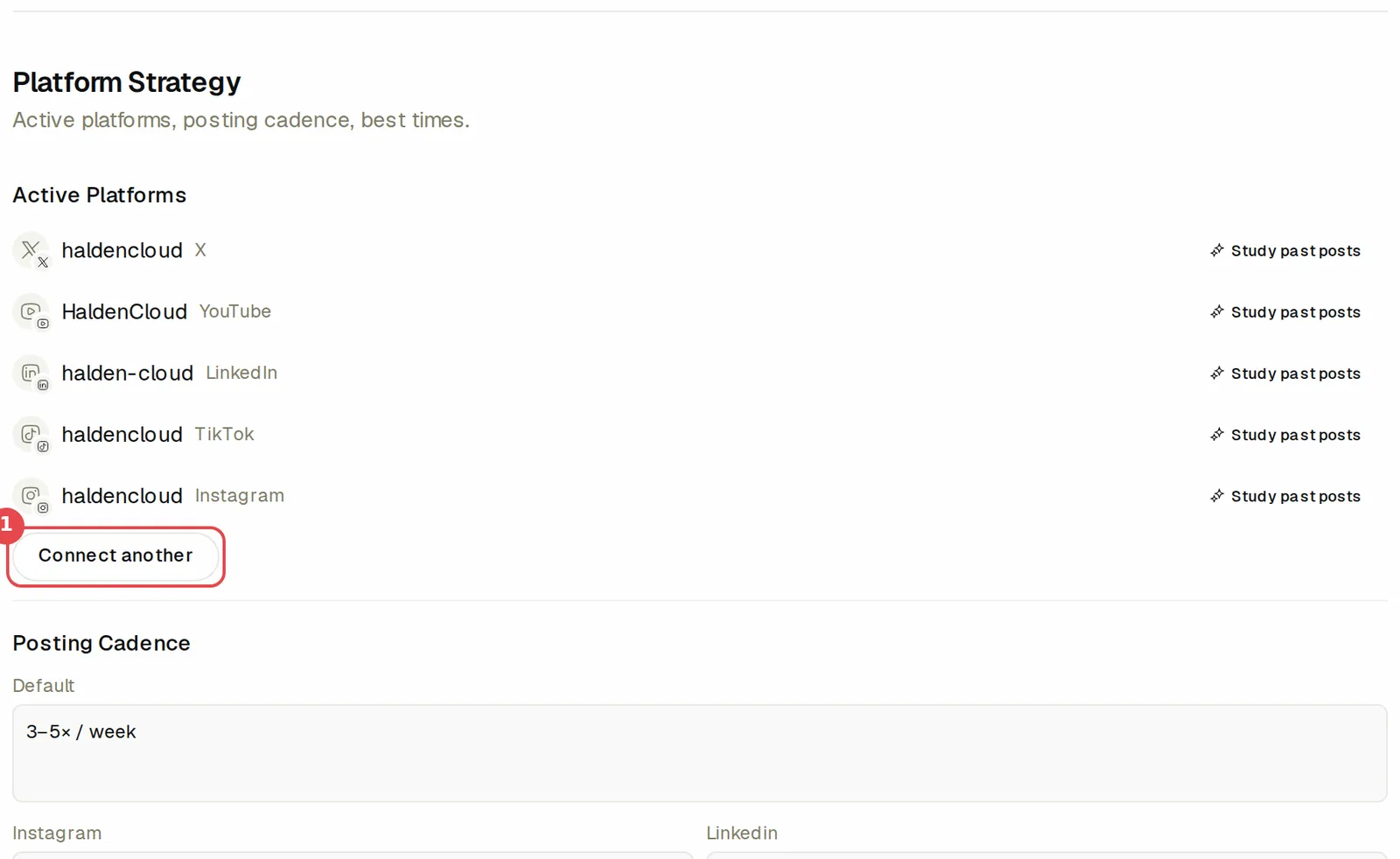
Press Connect accounts (or Connect another) to connect a new account for this brand. An account that needs to be connected again is listed under Needs attention. For more on connecting accounts, see Posts.
Next to each connected account is Study past posts. Bupple studies that account's 10 best and 5 worst posts from the last 90 days, including their words, pictures, videos and numbers. What it learns is left here as suggestions for you to accept or dismiss. Before anything starts, the window shows the price. Nothing runs until you press Yes, study them, and you never pay more than the top of the price shown.
Rules and Bupple's own advice
Rules & Guardrails holds two switches and the brand's hard rules.
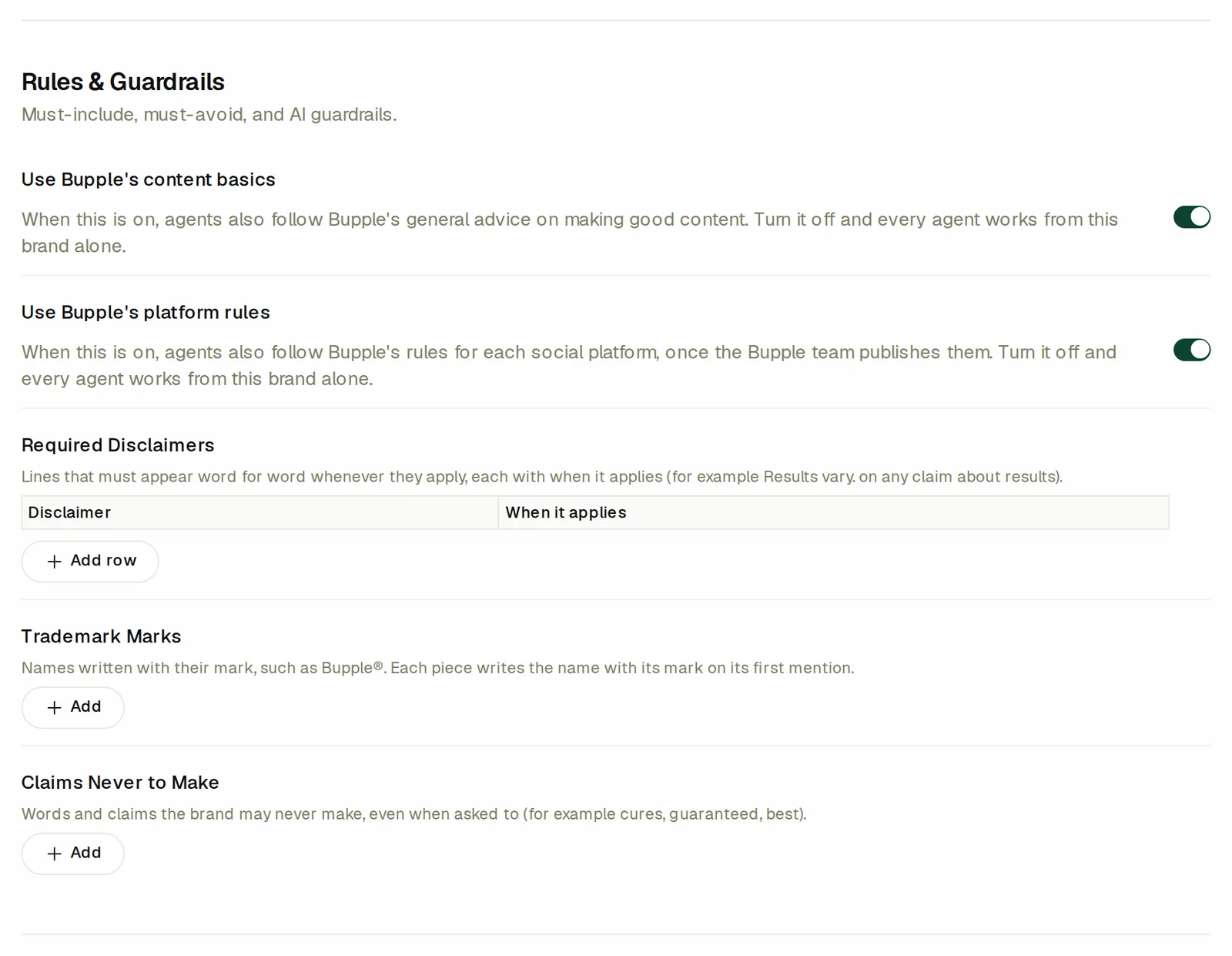
- Use Bupple's content basics. When on, agents also follow Bupple's general advice on making good content.
- Use Bupple's platform rules. When on, agents also follow Bupple's rules for each social platform, once the Bupple team publishes them.
Turn one off and every agent works from this brand alone. Both start on.
- Required Disclaimers are lines that must appear word for word whenever they apply, each with when it applies.
- Trademark Marks are names written with their mark, such as Bupple®, on their first mention.
- Claims Never to Make are words and claims the brand never makes, even when asked to.
What every piece must include or avoid in general is written in Brand Memory, under Must Include and Must Avoid. A workspace admin can also fix these per brand in workspace settings. Then the switch is shown as set, with the note Set by workspace settings, and you cannot change it here. See Workspace settings.
Version history
Every change to a Brand Kit field is kept as a version. Hover a field and click the … button that appears at its top right, then choose Version history.
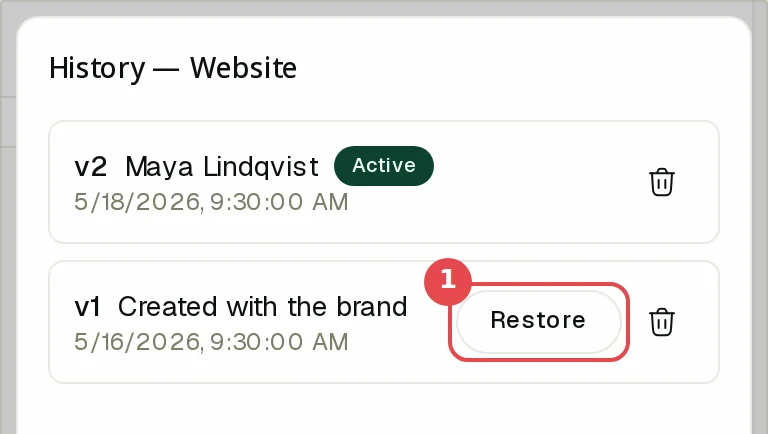
Each version shows its number, who made it (a teammate's name, AI or Bupple) and when. The one in use is marked Active.
- Restore brings an older version back. It does not wipe anything: the old version simply becomes the newest one.
The bin next to a version deletes that version. Brand Memory keeps its own history; see Brand Memory.
Brand Memory
Brand Memory is one document for the brand, in sections under headings, up to 2,000 words. When Brand Intelligence arrived in Release 18, the Brand Kit's longer fields moved into it word for word, one section each, such as Description, Target Audience, Brand Voice, Sample Hooks, Best Posting Times and What Works. Write the few things people and agents should always remember about the brand, and @-point at the files that hold the detail.
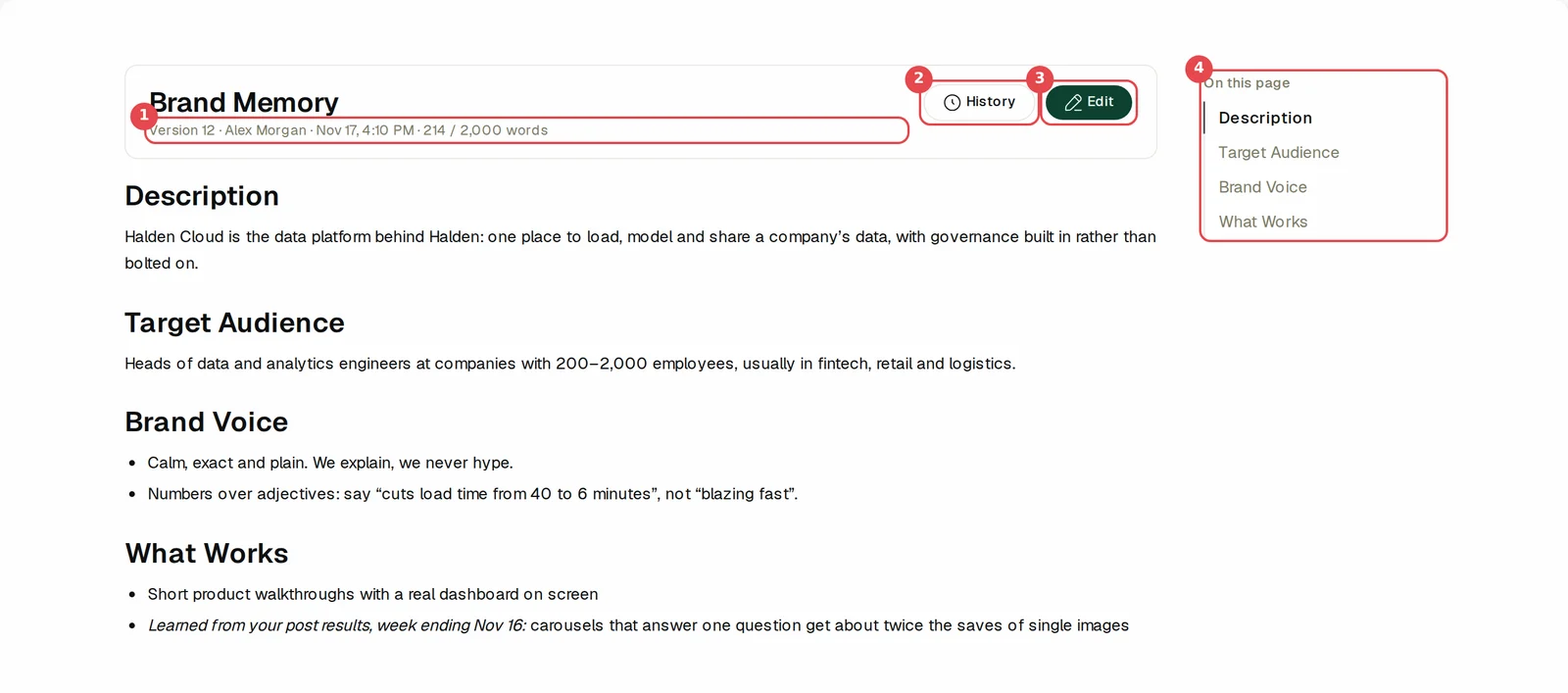
- The line under the title says the version, who saved it, when, and how many of the 2,000 words are used.
- History lists every saved version. See below.
- Edit opens the document in place. Type / for a menu of headings, lists, tables and more, select text to format it, type @ to point at a teammate, file, folder, post or campaign, and drag a block by its handle to move it. Press Save when you are done; you can say what changed, and every save is a new version.
- On this page lists the sections, so you can jump to one.
An empty Brand Memory says Not written yet, with Start writing. Brand Memory, like the Brand Kit, refuses to save a password, a key or a card number.
Every Monday, Bupple writes what it learned from your post results into the learned sections, such as What Works and What Fails, under its own line, Learned from your post results, week ending …. The lines you wrote yourself are never touched. See Analytics.
History and restore
History opens every saved version. Pick one to see what it changed against the version before it.
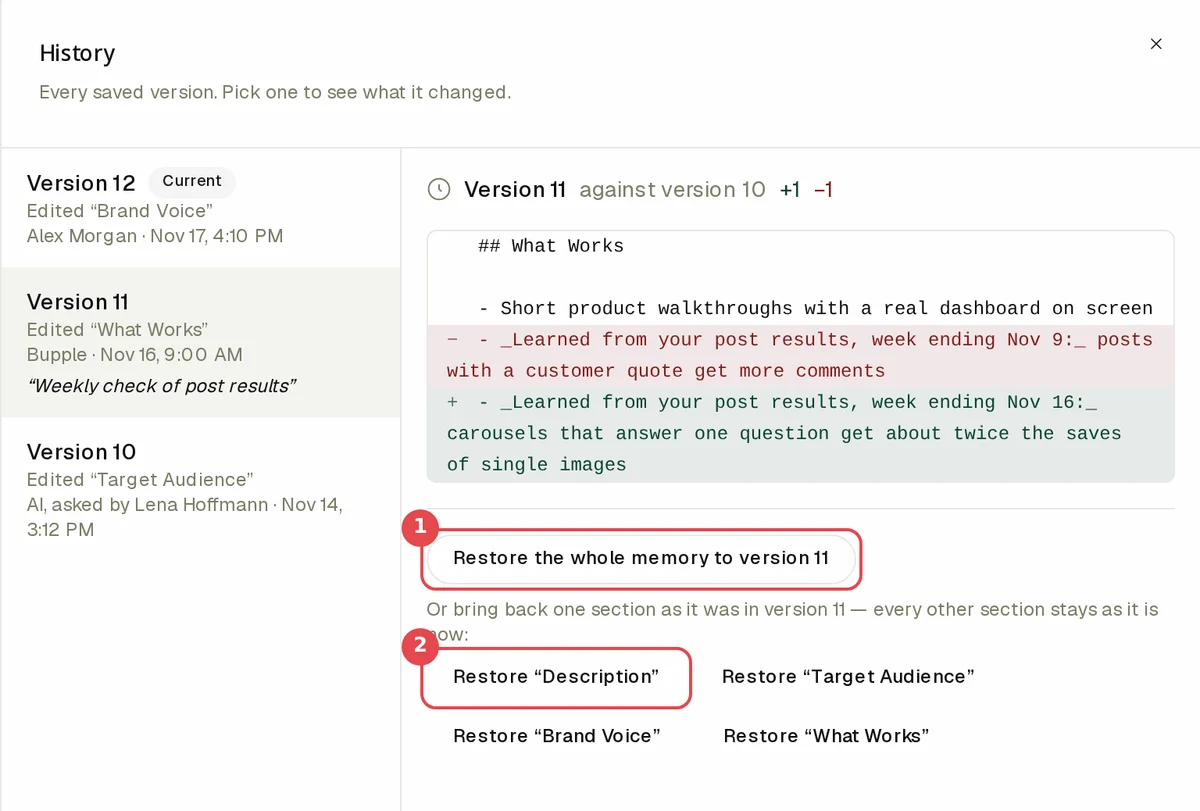
- Restore the whole memory to version … brings that whole version back as the newest one.
- Restore "…" brings back one section as it was in that version, and every other section stays as it is now.
Suggestions
Somebody who can see the brand but not edit it can still help. On Brand Memory they get Suggest an edit instead of Edit: they change the document, add why if they like, and press Save as suggestion. On the Brand Kit, they suggest a new value for a field. A teammate who tells the Superagent a fact about the brand in a chat, such as a new audience or a better one-liner, and a study of your past posts leave suggestions too. None of these change the brand. They wait at the top of the Brand Kit page under Suggestions. As the page says, Nothing changes until somebody who can edit the brand accepts one.
Each suggestion shows:
- The field or the Brand Memory section it is for.
- What it says now and what it would say: the old value crossed out and the new one beside it, or, for a Brand Memory section, the lines that would change.
- Why it was suggested.
- Who suggested it and when, for example Suggested by Lena Hoffmann in a chat. Suggestions from a study say From studying your posts instead.
A Brand Kit field also shows a small badge, such as 1 suggestion, that jumps to the list.
- Accept writes the suggestion in as a new version, so you can still restore the old one from the history.
- Dismiss throws the suggestion away and leaves the brand as it is.
- The person who made a suggestion can Withdraw it while it waits.
If the field or section has changed since the suggestion was made, it says so, and it has to be suggested again against what it says now. People who can edit the brand get a notice in Updates when a suggestion arrives.
When the Superagent changes your brand
People who can edit the brand can also ask the Superagent to change it directly. The Superagent and Bupple Line also write what they learn into Brand Memory. With Auto-approve off, they ask first and show what it says now and what it would say. With it on, the change just happens. When a Brand Kit field changes, the chat shows a one-line note, Brand updated: and the field name. Open the note to see what changed and why, press Undo to put the old value back, or press Open the brand. See Approvals and Auto-approve.
What to read next
- Superagent: the chat that reads your Brand Intelligence and can update it.
- Workspace settings: who may edit brands, and the workspace's brand switches.
Newsletter
Bupple in your inbox
Superagent
How to work with the Superagent chat in Bupple — the message box, the model, thinking and tools, the agents it hands work to, approvals, credits and the Agent to-do list.
Media Library
How to use the Bupple Media Library — folders and the Apps folder, uploads, importing from Google Drive, Dropbox, OneDrive, Unsplash and Frame.io, search, filters, the file preview, sharing and sending files to your drive, comments and moving files.